User Settings
Last updated: April 23, 2025
User Settings
Overview
User Settings in Veles is divided into three sections: User List, Segments, and Regions. This documentation focuses on the User List section, where you can manage all users added to your Veles account. At the end, you will find links to separate support pages for Segments and Regions.
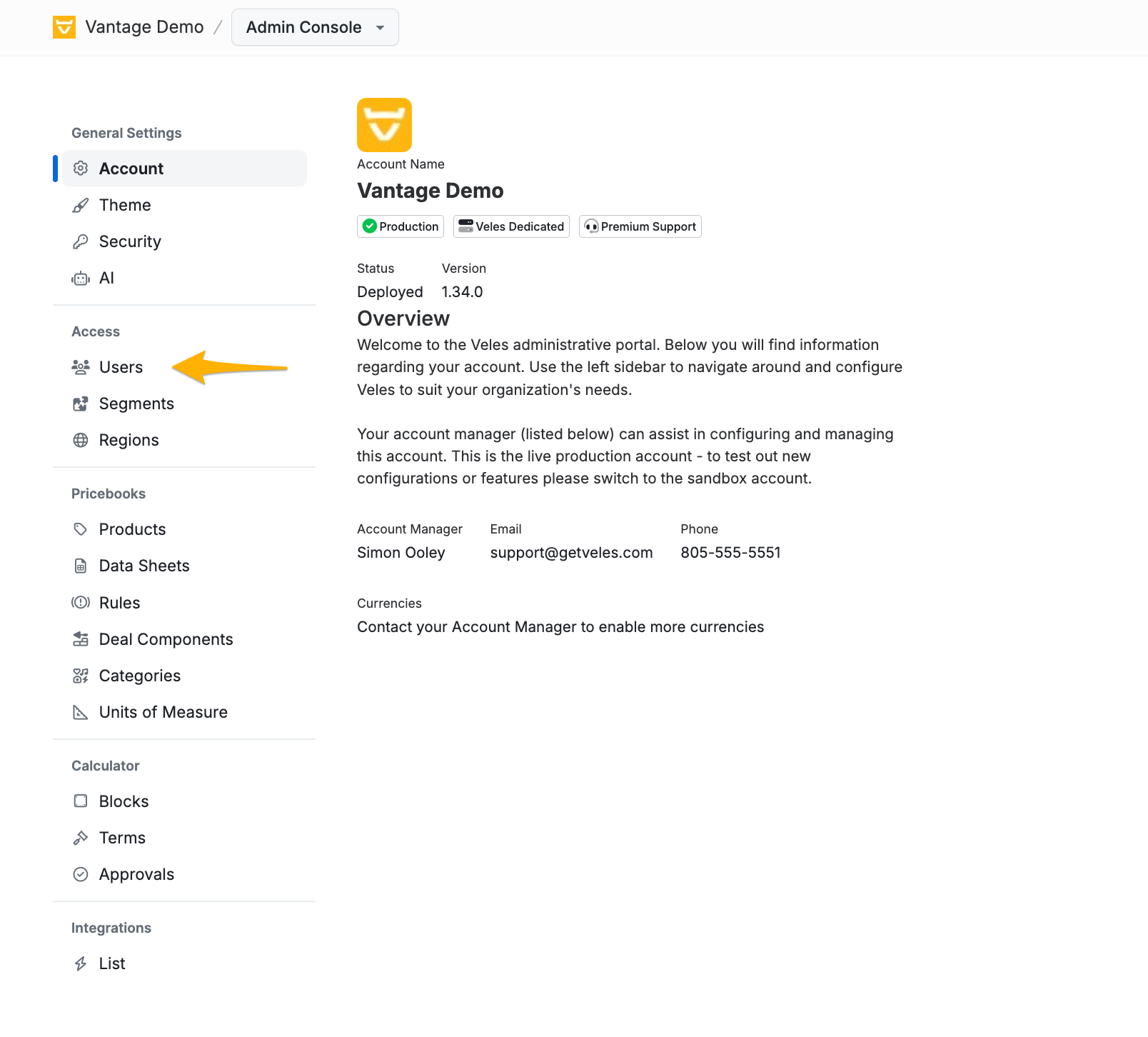
User List
Features
• View All Users: Displays a list of all users that have been added to your Veles account.
• Add New User: A button located at the top right of the user list view allows you to add new users to your account.
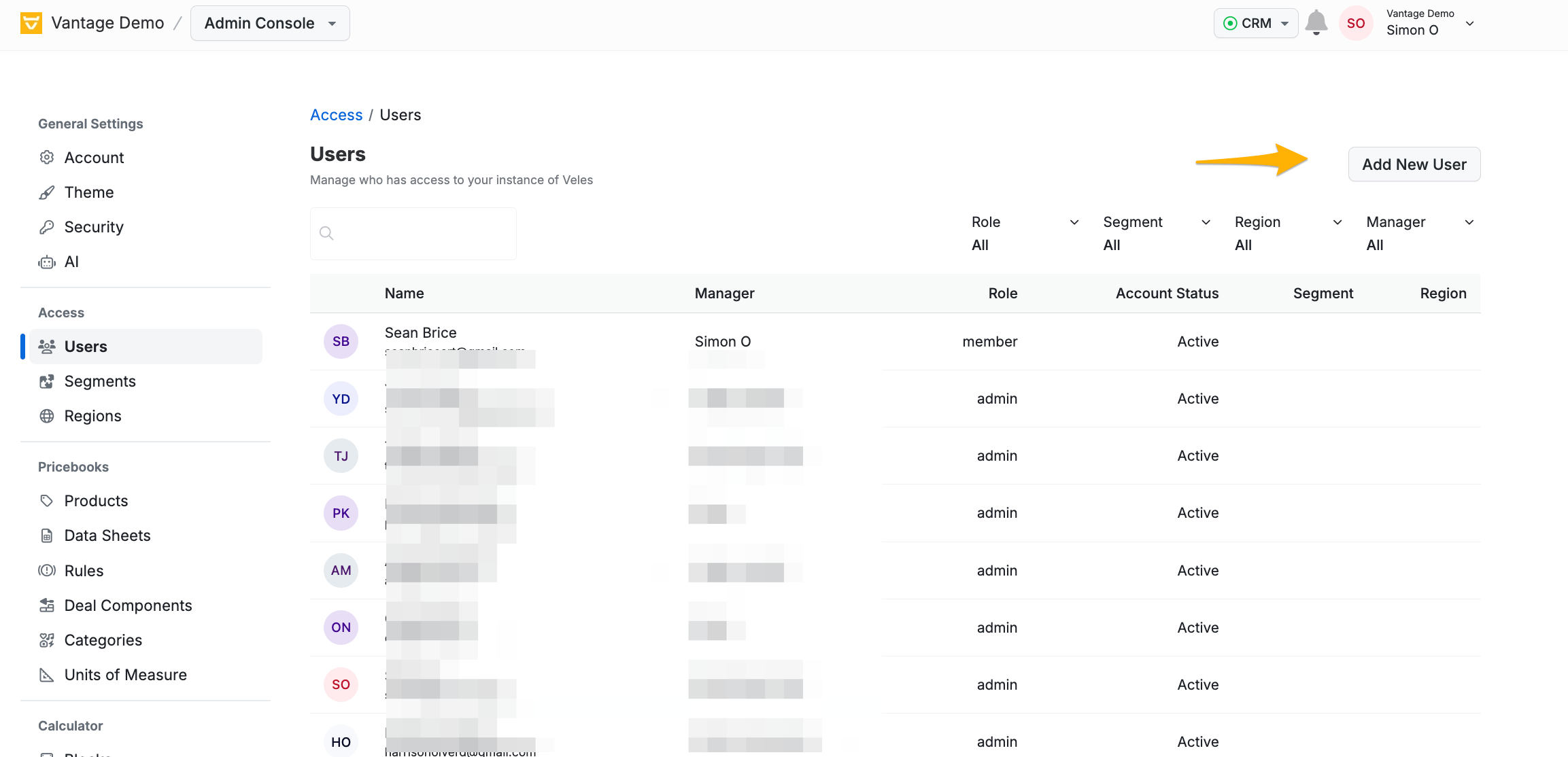
Viewing User Profiles
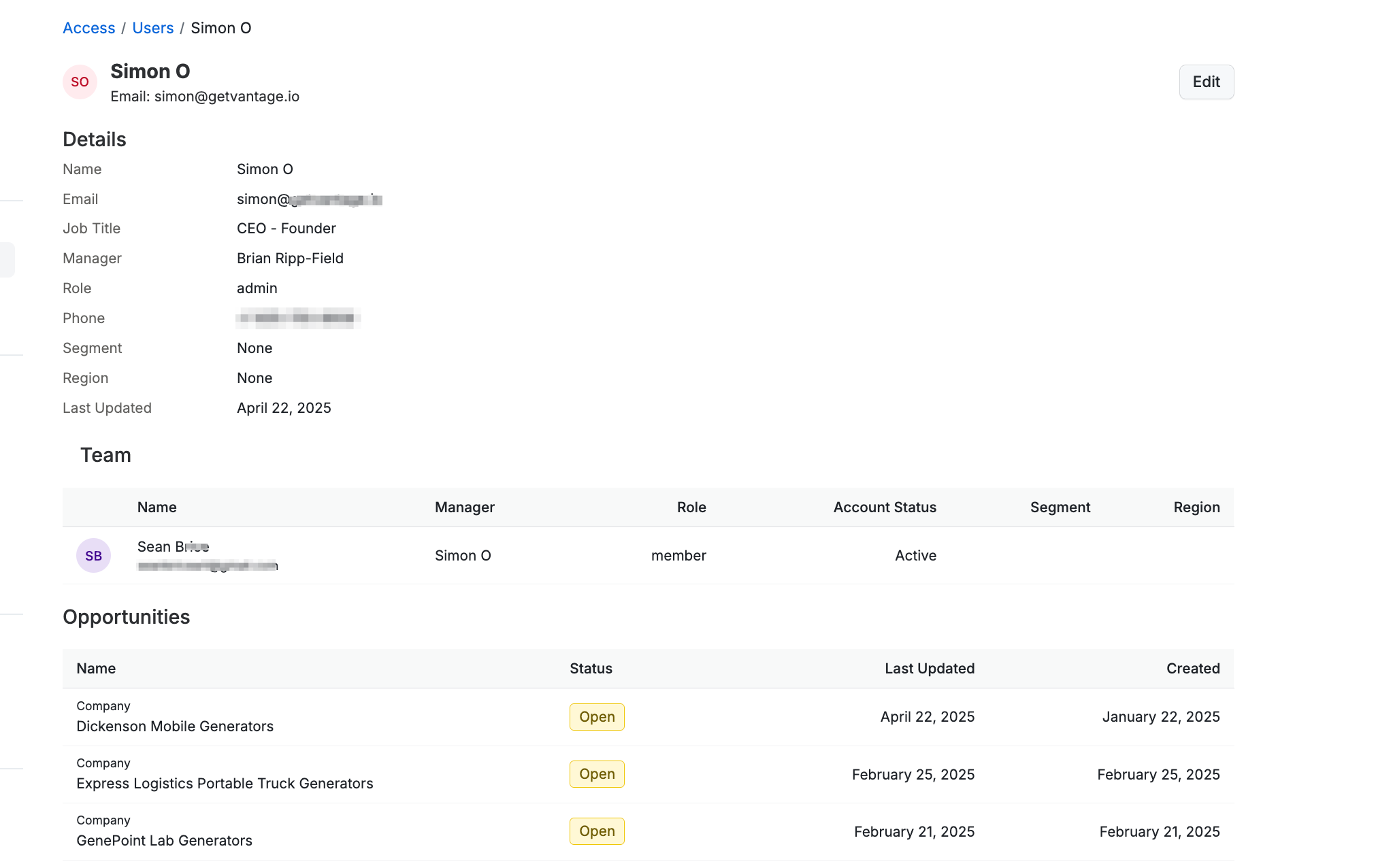
When you view a user’s profile, you can see all their information, including:
• Name
• Job Title
• Role
• Phone Number
• Segment
• Region
• Last Updated
Additionally, you can see a list of all the quotes they have built in Veles. Clicking on a quote takes you to a read-only view of that quote.
Editing User Settings
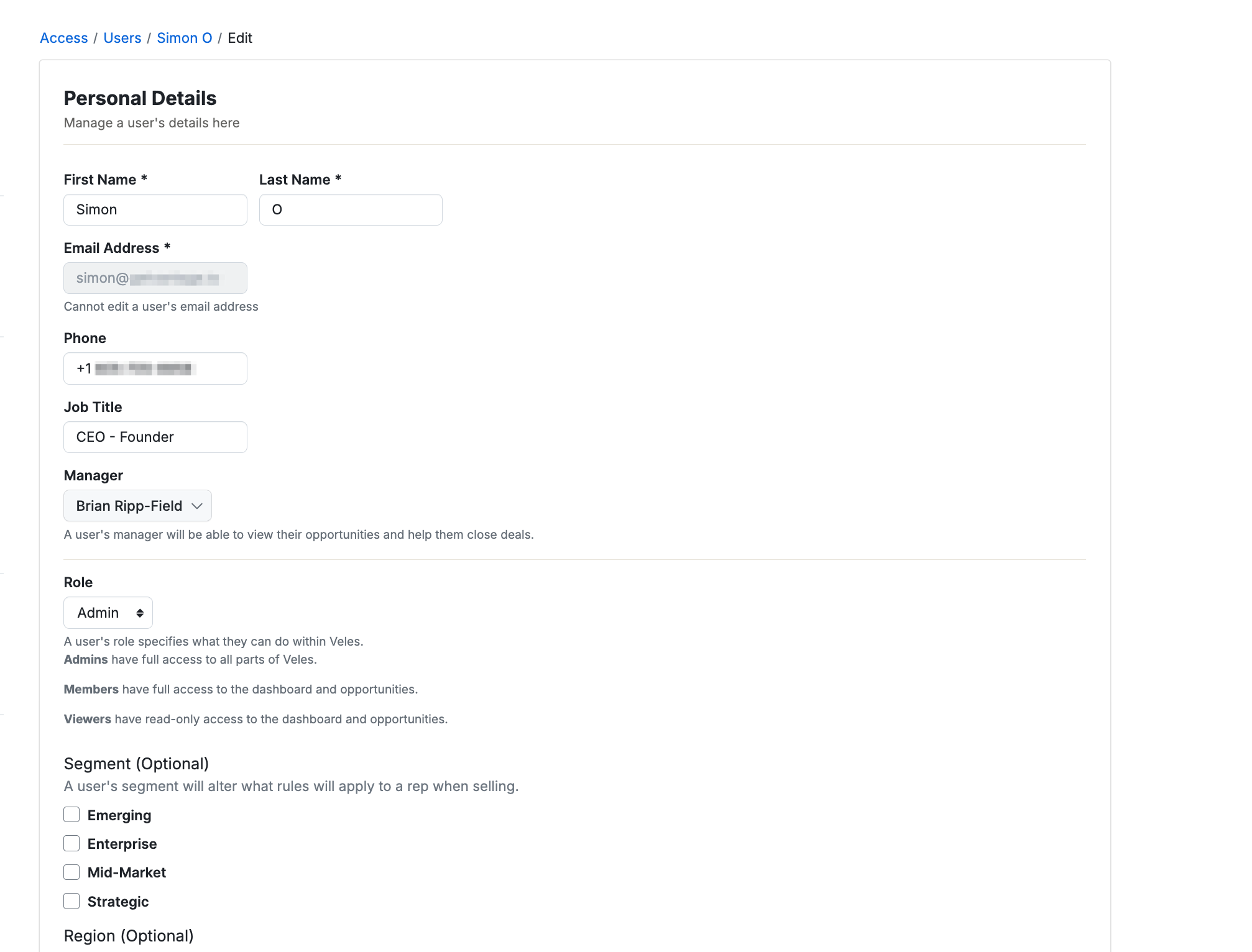
As an admin, you can edit the following fields in a user’s profile:
• Name
• Job Title
• Role
• Phone Number
• Segment
• Region
Please note that the email field cannot be changed once a user is added.
How to Add a New User
1. Navigate to User List: Open the User Settings from your dashboard or main navigation bar and select the User List section.
2. Click Add New User: Find the Add New User button at the top right of the user list view and click it.
3. Enter User Information: Fill in the required fields, including Name, Email, Job Title, Role, Phone Number, Segment, and Region.
4. Save: Click Save to add the new user to your Veles account.
Links to Other Sections
• Segments: Segments Support Page
• Regions: Regions Support Page
Conclusion
The User List section of User Settings allows you to manage all users on your Veles account efficiently. By viewing and editing user profiles, you can ensure that all user information is up to date and that you have a comprehensive overview of the quotes generated by each user.
For more details on managing Segments and Regions, please refer to their respective support pages linked above.
If you have any questions or need further assistance, please contact our support team.