Configuring Quote Exports
Last updated: April 23, 2025
Overview
Configuring the quote export allows sellers to customize the fields included in their exported PDF quotes. This flexibility ensures that the exported quote contains only the most relevant information for the customer, such as discount percentages, unit prices, and other important details.
Key Features
• Customizable Fields: Choose which fields to include in the export, such as discount percentages, unit prices, quantities, etc.
• Tailored Quotes: Create quotes that are tailored to your customer’s needs by including only the necessary information.
• Professional Presentation: Ensure that your quotes are presented in a clear and professional manner.
How to Configure the Quote Export
Step 1: Access the Export Configuration
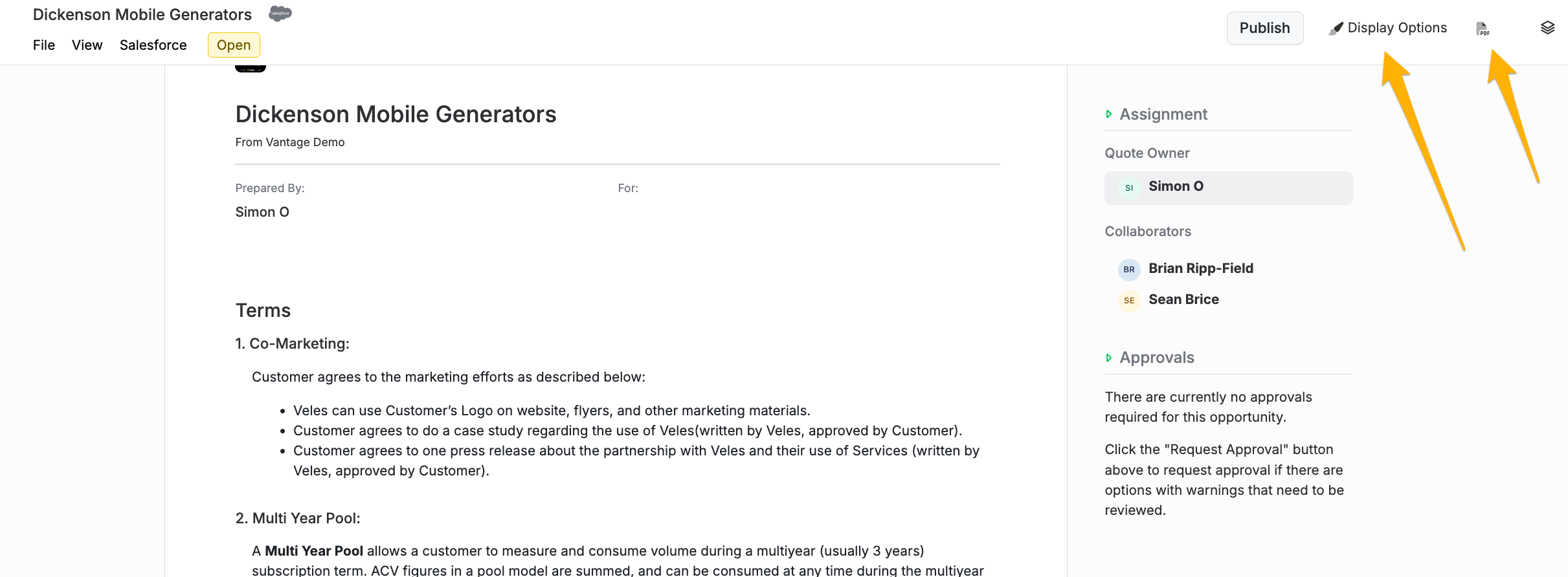
1. Navigate to the Quote Editor: Open the quote editor where you have your completed quote.
2. Locate Export Options: Find the export options, typically located in the toolbar or menu of the quote editor.
Step 2: Choose Fields to Include
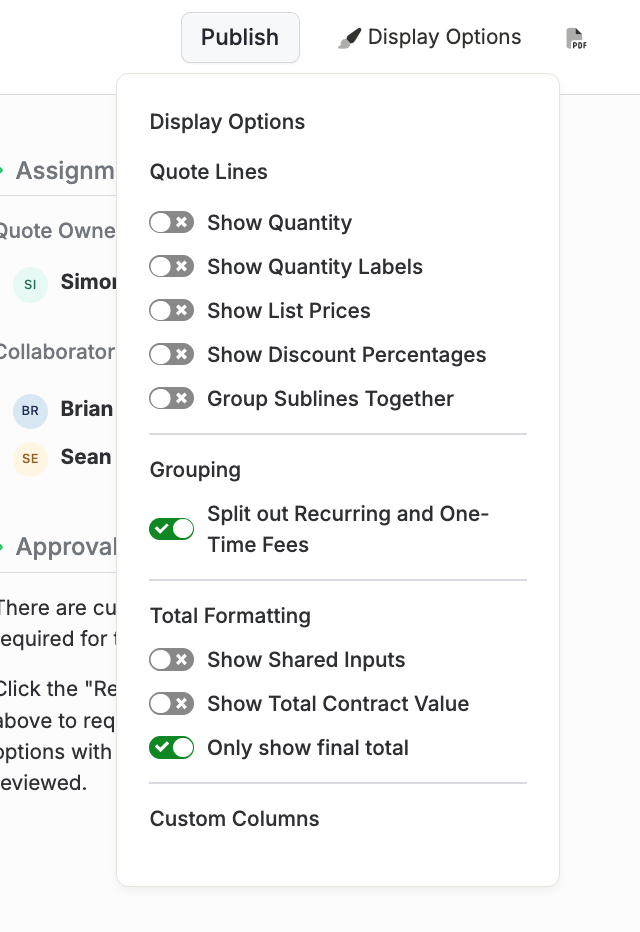
1. Select Export Fields: Click on the option to configure export fields.
2. Field Selection Menu: A menu will appear with checkboxes next to various fields that you can include in the export.
Step 3: Customize Your Export
1. Select Fields: Check the boxes next to the fields you want to include in the PDF export. Common fields include:
• Discount Percentage
• Unit Price
• Quantity
• Total Price
2. Preview: Use the preview function to see how the quote will look with the selected fields.
Step 4: Export the Quote
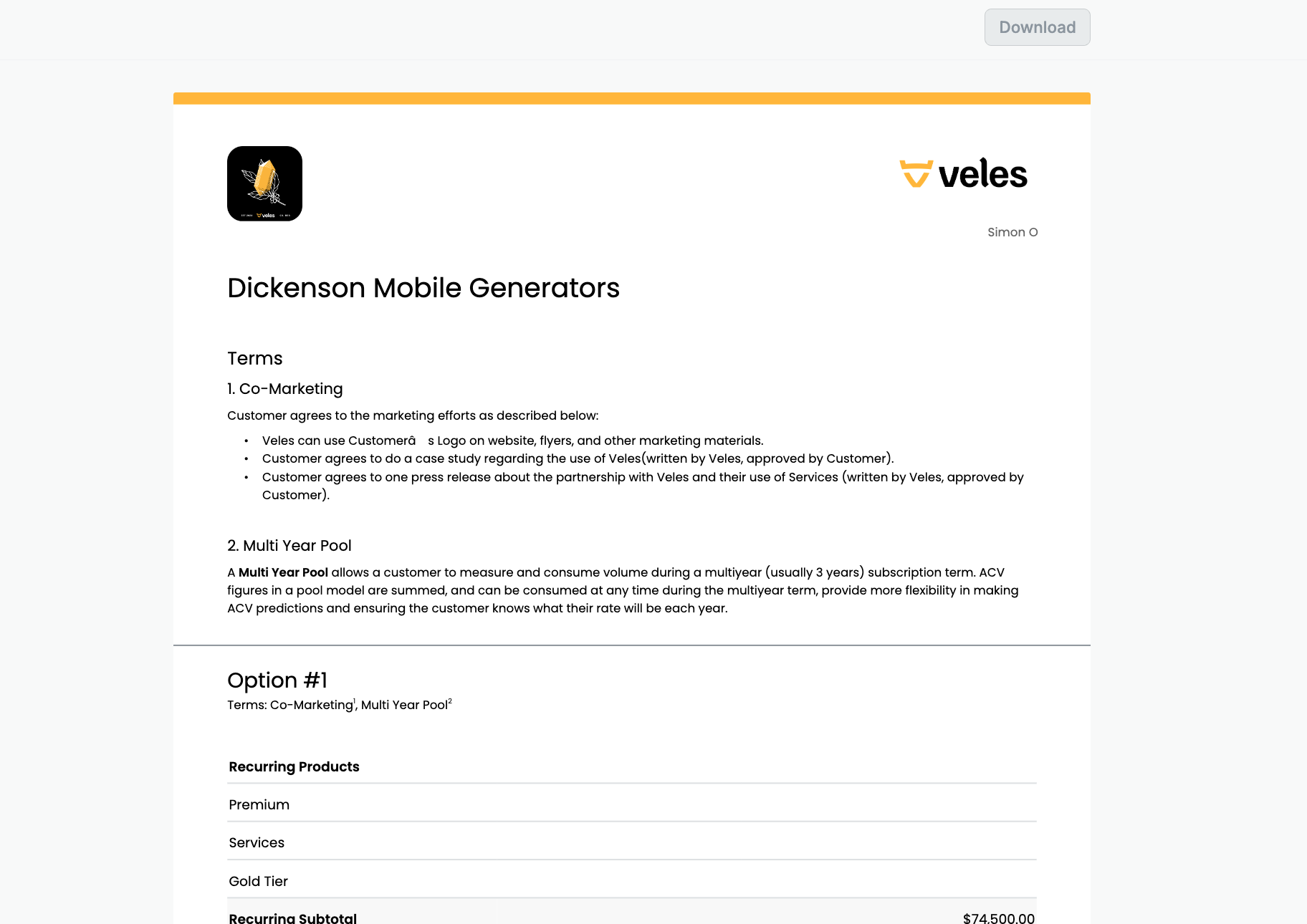
1. Export to PDF: Once you have selected the desired fields and reviewed the preview, click the option to export the quote to PDF.
2. Save and Share: Save the PDF to your device and share it with your customer as needed.
Example Scenario
Customizing a Quote Export
1. Scenario: You have a completed quote and want to include the discount percentage and total price in the exported PDF.
2. Configure Fields: Access the export configuration, select “Discount Percentage” and “Total Price,” and preview the quote.
3. Export: Export the quote to PDF, ensuring that the selected fields are clearly displayed.
Best Practices
• Relevance: Only include fields that are relevant to the customer to avoid overwhelming them with information.
• Clarity: Ensure that the included fields are clearly labeled and easy to understand.
• Consistency: Maintain consistency in the format and style of your exported quotes for a professional appearance.
Conclusion
Configuring the quote export allows you to tailor your quotes to meet the specific needs of your customers. By selecting the most relevant fields, you can present clear and professional quotes that highlight key information such as discounts and pricing details.
If you have any questions or need further assistance, please contact our support team.