Shared Unit of Measure (UOM) Field
Last updated: April 23, 2025
Shared Unit of Measure (UOM) Field
Learn how to use the Shared UOM Field to streamline pricing for multiple products with the same unit of measure.
Overview
The Shared Unit of Measure (UOM) Field is a feature designed to simplify and streamline the process of calculating pricing for multiple products that use the same unit of measure. By defining the UOM once, you can influence the pricing of all related products in a quote, reducing redundancy and ensuring consistency.
Key Features
• Unified Calculation: Define a single UOM that multiple products can use for pricing calculations.
• Efficiency: Save time by avoiding the need to enter the UOM separately for each product line.
• Consistency: Ensure consistent pricing calculations across all products that share the same UOM.
How to Use the Shared UOM Field
Step 1: Access the Shared UOM Field
1. Navigate to the Quote Editor: Open the quote editor where you are building your quote.
2. Locate the Shared UOM Field: Find the Shared UOM Field option within the quote editor interface.
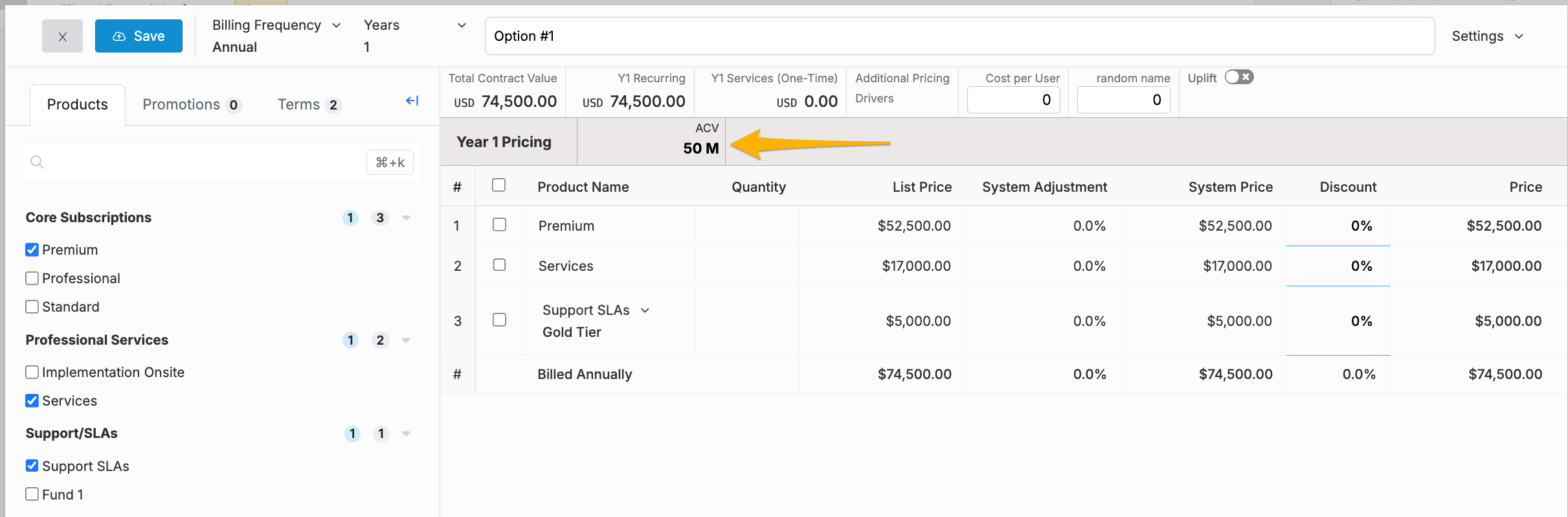
Step 2: Define the Shared UOM
1. Enter the UOM: Input the unit of measure that will be shared by multiple products. Examples of UOMs include hours, kilograms, liters, etc.
2. Set the Value: Define the value for the UOM that will be used in the pricing calculations.
Step 3: Apply the Shared UOM to Products
1. Select Products: Identify the products in your quote that will use the shared UOM.
2. Assign the UOM: Link the selected products to the defined Shared UOM. This ensures that the pricing for these products will be calculated using the same unit of measure.
Step 4: Review and Finalize the Quote
1. Verify Calculations: Ensure that the pricing calculations for all products using the shared UOM are correct.
2. Finalize the Quote: Once all details are accurate, proceed to finalize and lock the quote as needed.
Example Scenario
Using Shared UOM for Multiple Products
1. Scenario: You are building a quote that includes 5 product lines: Product A, Product B, Product C, Product D, and Product E. Products A, B, and C all use the same unit of measure (e.g., kilograms).
2. Define UOM: Enter “kilograms” as the Shared UOM and set the value (e.g., 10 kg).
3. Apply UOM: Link Products A, B, and C to the Shared UOM.
4. Review: Ensure that the pricing for Products A, B, and C is calculated based on the defined UOM.
5. Finalize: Complete the quote and lock it as “Show to Customer.”
Best Practices
• Accuracy: Double-check the UOM and its value to ensure accurate pricing calculations.
• Clarity: Clearly label and define the Shared UOM to avoid any confusion during the quote-building process.
• Consistency: Regularly review and update shared UOMs to maintain consistency across your product lines.
Conclusion
The Shared Unit of Measure Field is a valuable tool for efficiently managing pricing calculations for multiple products with the same unit of measure. By defining the UOM once and applying it to relevant products, you can save time, ensure consistency, and reduce the risk of errors in your quotes.
If you have any questions or need further assistance, please contact our support team.